Network configuration
In order, to benefit from all the advantages of blocky like ad-blocking, privacy and speed, it is necessary to use blocky as DNS server for your devices. You can configure DNS server on each device manually or use DHCP in your network router and push the right settings to your device. With this approach, you will configure blocky only once in your router and each device in your network will automatically use blocky as DNS server.
Transparent configuration with DHCP
Let us assume, blocky is installed on a Raspberry PI with fix IP address 192.168.178.2. Each device which connects to
the router will obtain an IP address and receive the network configuration. The IP address of the Raspberry PI should be
pushed to the device as DNS server.
┌──────────────┐         ┌─────────────────┐
│              │         │ Raspberry PI    │
│  Router      │         │   blocky        │
│              │         │ 192.168.178.2   │
└─▲─────┬──────┘         └────▲────────────┘
  │1    │                     │  3
  │     │                     │
  │     │                     │
  │     │                     │
  │     │                     │
  │     │                     │
  │     │                     │
  │     │       ┌─────────────┴──────┐
  │     │   2   │                    │
  │     └───────►  Network device    │
  │             │    Android         │
  └─────────────┤                    │
                └────────────────────┘
1 - Network device asks the DHCP server (on Router) for the network configuration
2 - Router assigns a free IP address to the device and says "Use 192.168.178.2" as DNS server
3 - Clients makes DNS queries and is happy to use blocky 
Warning
It is necessary to assign the server which runs blocky (e.g. Raspberry PI) a fix IP address.
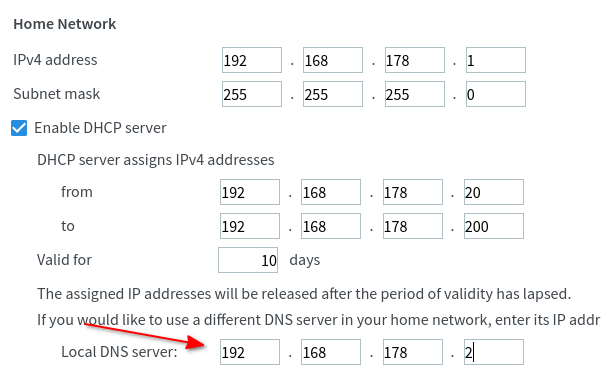
Example configuration with FritzBox
To configure the DNS server in the FritzBox, please open in the FritzBox web interface:
- in navigation menu on the left side: Home Network -> Network
- Network Settings tab on the top
- "IPv4 Configuration" Button at the bottom op the page
- Enter the IP address of blocky under "Local DNS server", see screenshot
Running blocky behind a reverse proxy
When Blocky's HTTP / DoH listener is fronted by a reverse proxy (nginx, Traefik, Caddy, HAProxy, ...), the TCP peer Blocky sees is the proxy, not the real client. To preserve per-client behavior (client groups, query logging, custom DNS rules), Blocky inspects forwarding headers in this fixed precedence order:
Forwarded(RFC 7239) — the standardized header. The firstfor=parameter wins. Bothfor=192.0.2.43andfor="[2001:db8::1]:8080"are accepted.X-Forwarded-For— the de facto standard. The leftmost IP in the comma-separated list wins (per convention, it is the original client).RemoteAddr— direct TCP peer; used when no forwarding header is present.
The first header found wins; later headers are ignored. So if your
proxy sets both Forwarded and X-Forwarded-For, Blocky uses
Forwarded.
Warning
Blocky uses Forwarded / X-Forwarded-For whenever those
headers are present; this is not a separate feature you can
enable or disable. If Blocky is reachable directly by clients,
they can send these headers themselves and spoof their identity.
Ensure Blocky is only reachable through a trusted reverse proxy,
or that the proxy strips any incoming Forwarded /
X-Forwarded-For headers and overwrites them with trusted values.
nginx
location /dns-query {
    proxy_pass http://blocky-backend:4000/dns-query;
    proxy_set_header X-Forwarded-For $remote_addr;
}
Traefik (dynamic file config)
http:
  services:
    blocky:
      loadBalancer:
        servers:
          - url: "http://blocky-backend:4000"
  middlewares: {}
  # Traefik sets X-Forwarded-For automatically; no extra config needed.
Running DoT/DoH behind a TCP proxy
For DNS-over-TLS and HTTPS passthrough, HTTP forwarding headers are not available before Blocky handles the TLS connection. Enable the HAProxy PROXY protocol on the Blocky listener and configure the proxy to send it.
Warning
List a listener under ports.proxyProtocol only when it is reachable only
from trusted proxies. When enabled, Blocky requires a PROXY protocol header
and uses the source address from that header as the client IP.
The PROXY protocol only covers TCP listeners. HTTP/3 (QUIC/UDP) cannot carry
a PROXY protocol header, so enabling https here automatically disables
HTTP/3. Plain DNS-over-UDP is likewise unaffected by dns.
The http and https listeners also serve the Prometheus metrics, the REST
API and the /debug pprof endpoints. Enabling http/https here makes all
of them require a PROXY protocol header, so anything that connects to that
port directly (e.g. a Prometheus scrape not routed through the proxy) is
rejected. Bind those tools behind the same trusted proxy, or expose metrics
and API on a separate listener without PROXY protocol.
Blocky
ports:
  https: 443
  tls: 853
  proxyProtocol:
    - https
    - tls
nginx stream
stream {
    upstream blocky_dot {
        server blocky-backend:853;
    }

    server {
        listen 853;
        proxy_pass blocky_dot;
        proxy_protocol on;
    }

    upstream blocky_doh {
        server blocky-backend:443;
    }

    server {
        listen 443;
        proxy_pass blocky_doh;
        proxy_protocol on;
    }
}